
How to Use the SUMIF Formula in Excel – Complete Beginner Guide (2025)
The SUMIF formula in Excel is one of the most useful functions for conditional calculations. Whether you’re analyzing sales, student marks, financial data, or inventory, SUMIF helps you total only the values that match your given criteria.
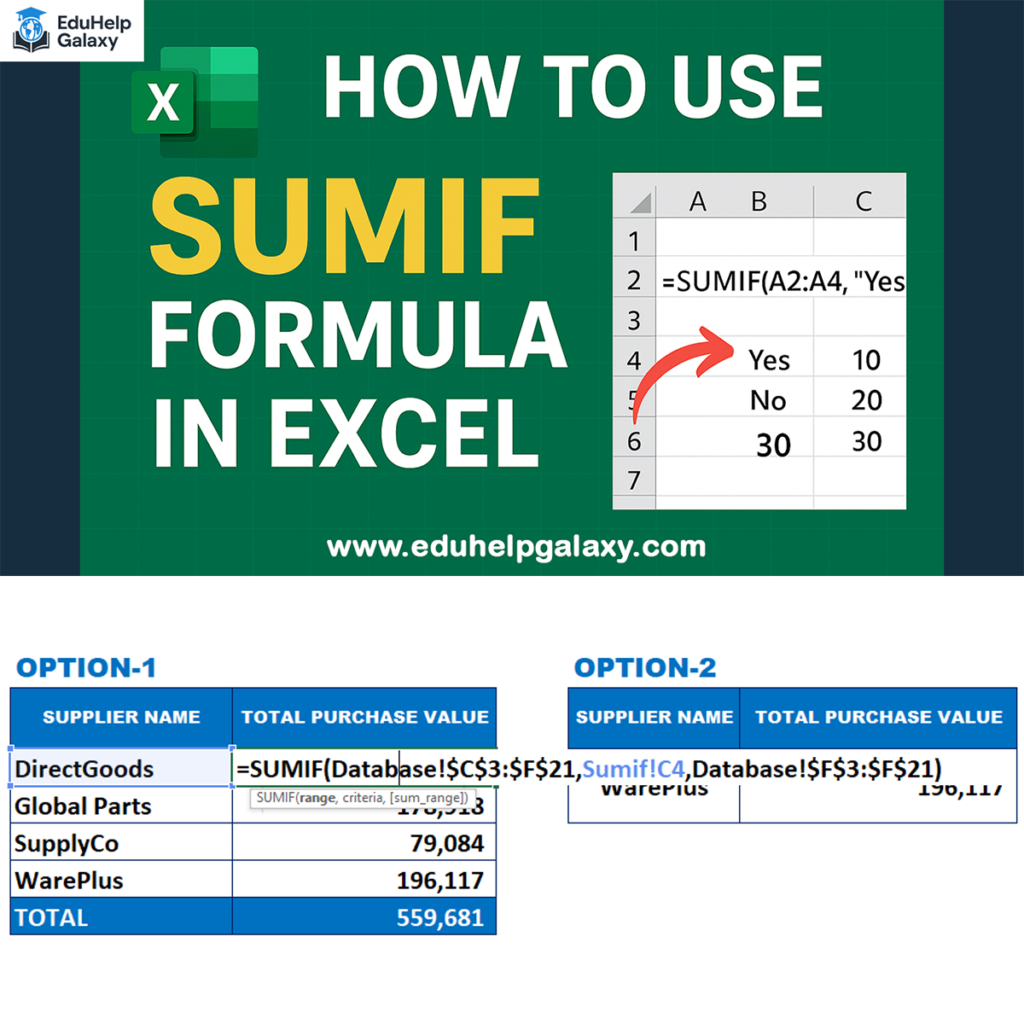
In this complete guide, you’ll learn what SUMIF is, how it works, step-by-step examples, and real-life uses, along with a visual example for better understanding.
⭐ What Is the SUMIF Formula in Excel?
The SUMIF function allows you to sum only those values that meet a specific condition.
It is commonly used for:
- Summing sales for a particular product
- Totaling purchases from a specific supplier
- Adding marks of students who passed
- Summing values greater than or less than a number
✔ SUMIF Formula Syntax
=SUMIF(range, criteria, [sum_range])
📊 SUMIF Formula Example
Below is an example demonstrating how SUMIF works.
This visual guide shows two different ways to write the SUMIF formula inside Excel:
Data table

Apply Sumif Formula

Result After Apply Sumif Formula

📌 Example Image – SUMIF Formula Demonstration
👉 https://eduhelpgalaxy.com/lectures/
What This Image Shows
The image contains two SUMIF options:
🔵 OPTION 1: SUMIF Using Criteria Inside the Formula
=SUMIF(Database!$C$3:$F$21,"DirectGoods",Database!$F$3:$F$21)
🔵 OPTION 2: SUMIF Using Cell Reference as Criteria
=SUMIF(Database!$C$3:$F$21, C4, Database!$F$3:$F$21)
✔ This example demonstrates:
- SUMIF used to total purchase values by supplier
- Using text criteria directly
- Using cell references as criteria
- Summing values from another worksheet
- Analyzing tables for procurement, purchasing, or vendor totals
📘 Basic SUMIF Example (Simple Method)
Let’s learn SUMIF with a basic example:
| Response | Value |
|---|---|
| Yes | 10 |
| No | 20 |
| Yes | 20 |
Goal:
Sum the values where the response is “Yes”.
Formula:
=SUMIF(A2:A4, "Yes", B2:B4)
Result:
10 + 20 = 30
🎯 Common SUMIF Examples You Should Know
1. SUMIF with Text Criteria
=SUMIF(A2:A20,"Shampoo",B2:B20)
2. SUMIF with Greater or Less Than
=SUMIF(A2:A15,">100",B2:B15)
3. SUMIF with Cell Reference
=SUMIF(A2:A10, ">" & C1, B2:B10)
4. SUMIF with Wildcard (Partial Text)
=SUMIF(A2:A50,"Pen*",B2:B50)
🔥 Why SUMIF Is Important
Learning SUMIF boosts your Excel skills and helps you:
- Analyze data faster
- Reduce manual errors
- Create automated reports
- Make smarter decisions
- Save time with conditional calculations
SUMIF vs. SUMIFS (Important Difference)
| Function | Purpose | Conditions Allowed |
|---|---|---|
| SUMIF | Sum with one condition | 1 condition |
| SUMIFS | Sum with multiple conditions | 2 or more |
❗ Common Errors in SUMIF & Solutions
| Problem | Reason | Fix |
|---|---|---|
| Wrong result | Ranges not equal size | Ensure same length |
| Criteria not working | Missing quotes | Use “>50″, “Apple” |
| Blank results | Empty data cells | Remove blanks |
📌 Real-Life Uses of SUMIF
SUMIF is used in:
- Procurement & purchasing totals
- Student marks & result sheets
- Sales reports
- Budget & expense tracking
- Inventory management
- Data entry & office work
🌐 Learn More Excel Tutorials
For more Excel tips, formulas, and beginner-friendly lessons, visit:
🔗 https://eduhelpgalaxy.com/lectures/
New tutorials are added regularly to help you master Excel quickly.
🏁 Final Thoughts
The SUMIF formula is a powerful tool for beginners and professionals. With the right examples and visual guides—like the image above—you can easily master conditional summing in Excel.
Start practicing these formulas, and your productivity will improve instantly.